Import time series parameters
This form is used across multiple system definition windows to assist with importing time series for various parameters.
This form is notably accessible from:
- User Needs
- Grid Storage
- Economical evaluation
- Grid limitation
- Soiling
- Ground Albedo
Interface
After pressing choose CSV file or an equivalent button, you will see a similar window:
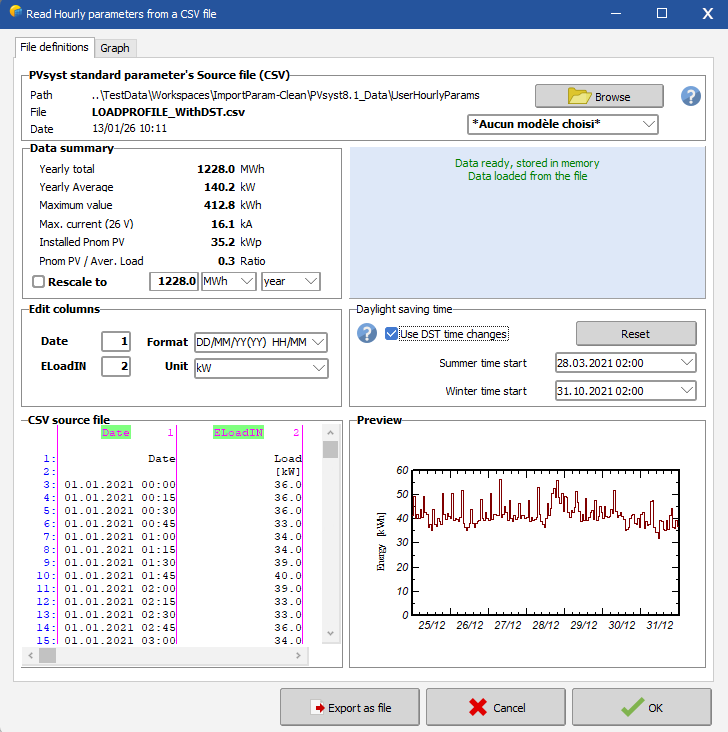
Depending on the sending form, some of the options and display may not be available.
File definitions
File Selection
- Browse opens a file explorer window to select a CSV file.
- Template: in some cases, a list of templates is available from the dropdown menu.
Once loaded, the path, filename, and last modification date of the selected file will be displayed on the left.
Data summary
Summary of the loaded data. The rescale button allows to rescale the time series.
- Rescale check box : enable or disable the rescaling
- Value : Value used for the rescaling
- Unit : Rescaling unit
- Year or month : Rescale the data based on either the full year or a specific month.
Note
The rescaling won't affect the original CSV file.
Edit columns
Automatic column and unit detection is applied when the file is opened. However, this detection may fail or be incorrect. This panel allows you to set or override column information when needed. From left to right:
- Date and variable name
- Column containing the data
- Format: timestamp format
- Unit: column unit
Note
Changing the column unit will have a similar effect to rescaling data from one unit to another. For example, forcing the unit to "kW" in this case will have the same effect as rescaling from 1000 kWh to 1000 mWh.
Warning
Modifications such as rescaling or changing the column index will be applied during the batch. If the systematic rescaling is not desired: - Export the file with rescaled values with the Export As File button - Make sure the new file is used as the current timeseries - Disable the rescaling parameters - save the variant
Daylight Saving time
Imported time series may include daylight saving time adjustments in the timestamps. In this case, during the summer period, the time is shifted by 1 hour compared to standard time.
Because PVsyst simulation is always based on standard winter time, it is necessary to shift the timestamps during the summer period to avoid unintended data shifts for half a year.
If both a doubled and missing hour are found in the file, the summer date and winter date start time pickers will be updated with these dates. They can also be set manually if automatic detection is incorrect.
Clicking on the reset button will reapply the automatically detected DST dates.
Checking the checkbox "Use DST time changes" will apply a -1h shift to all timestamps between the "summer time starts" and "winter time starts".
CSV source file
Displays the CSV file as read by PVsyst.
Preview
A preview of the time series as currently processed. More details can be found on the Graph tab.
Graph
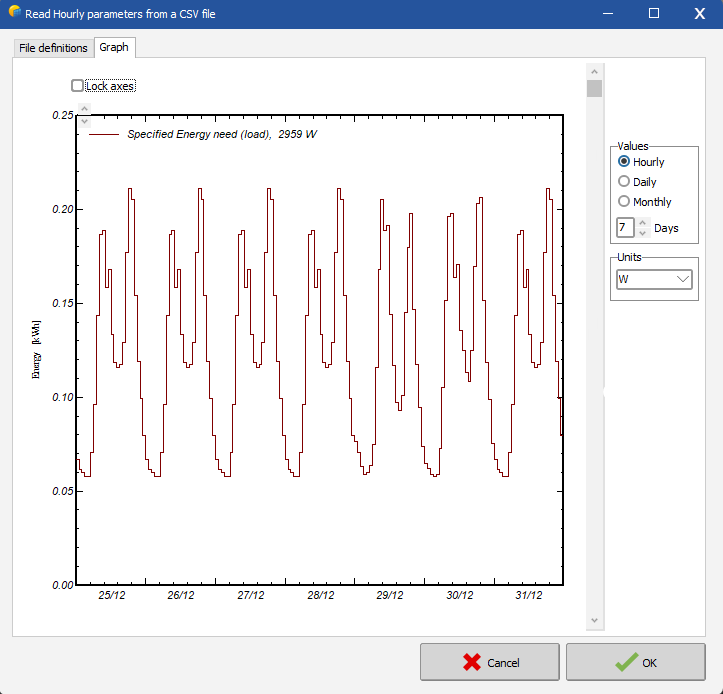
This sheet displays the processed data. Hourly, daily, and monthly views are accessible via radio buttons on the right.
Export As File
The "Export as file" button generates a CSV file with the current parameters. The output file will include any normalization and unit changes applied.
PVsyst standard format for hourly or sub-hourly parameters
The required format for the importing of hourly parameters in PVsyst is the following:
- Text file (CSV format with commas or semicolons) saved in ANSI encoding (not UTF-8).
- All lines starting with the hash symbol '#' are treated as comments and will be ignored.
- Blank lines are ignored.
- The first line that does not start with # is treated as the column header containing the data names.
- The following line contains the units of the data in the columns.
- At least one column must contain the date, and another must contain the data.
- The date and time must be in a single column.
- The year is ignored during simulation.
- The time series can start at any point during the year, as long as it ends exactly one year after the start (for example, 20/03/2023 10:15 to 20/03/2024 10:00 for a 15-minute interval is acceptable).
clean
- The file must contain a full year
- Rows must contain consecutive dates
- Time step must be regular with no gap.
- The file must use only one type of separator
When opening an existing variant containing a time series, PVsyst will attempt to reload the CSV file based on the saved path and filename.
If the file does not exist at this location, it will display the time series as recorded in the variant. If a file is found but the data does not match the recorded time series, you will be prompted to either reload the file or keep the recorded time series.