Weather Data Note 3: Legacy time shift
This page applies to hourly .MET files created before PVsyst 8.1.0. For minute files, the process was slightly modified and is described here.
PVsyst conventions
In the PVsyst convention, the time label always refers to the beginning of the record, and concerns the accumulation up to the next record. The time is itself defined in Legal winter Time (no DST). Input weather data files used to create PVsyst .MET files could use any time convention there is, and might not match PVsyst's.
The time shift parameters are used to convert the original weather data input time to the PVsyst standard time.
Time shift causes
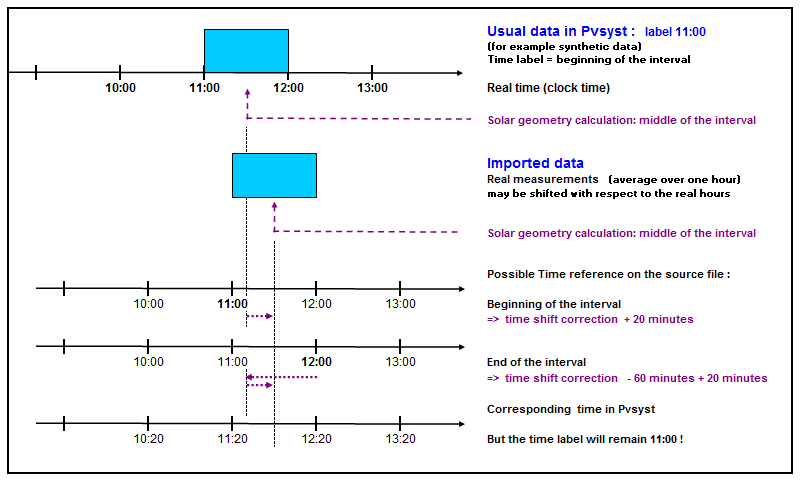
Depending on authors or data acquisition systems, this time label definition may be:
- The beginning of the interval, as in PVsyst.
- The end of the interval.
- The middle of the interval (for example time label = 12:30).
- Expressed in UT (Universal Time) rather than the local legal time.
- Submitted to changes during the year (DST - Daily Saving Time).
- Moreover this "reference" time may be shifted by some minutes with respect to the true Legal Time (11:20 to 12:20 in the following example).
- The time periods may also be defined in sub-hourly values, which will be averaged in hourly values at the importing time.
Time Shift correction
For simulations steps using solar geometry (e.g. shadings), it is crucial to use the sun position corresponding to the middle of the time interval. For example, a 12h00 timestep (hourly data) will use a sun position computed at 12:30.
If weather data seems to be shifted compared to the clear sky estimate, a Time Shift parameter is set to compensate. For example, in the case of a 12h00 timestep (hourly data) associated with a +10 minutes time shift, the simulation will use a sun position computed at 12:40 for that interval.
This Time Shift will be used in any simulation calculation involving the Sun geometry.
Hour shift
For very large time shifts, an hour shift can be defined. In this case, the time labels themselves are changed. For example 12h00 becomes 13h00 with a +1 hour time shift. This hour shift is displayed on the .MET for information only and is not used in the simulation as the shift is contained in the .MET time labels.
Effect on the irradiance
The correct time is extremely important, especially for the Transposition model, and also for the Diffuse model.
As these models are already used during the import of the data, it is very important to define the parameters governing the time already during the Importing process.
With POA imported values, observing this rule is fundamental, as the (retro-) transposition of the hours in the morning or the evening are very sensitive to the Sun's height (division by sin(Hsol), i.e. the time at which it is computed.
A time shift error in the solar geometry will result in very high errors for the Horizontal Global value (may attain several kW/m²), which is of course quite unphysical, or even lead to POA significant values for HSol = 0°.
This is the main (only) source of discrepancy between your input measured data, and the effectively re-transposed values in the same plane orientation.
If you observe such discrepancies, you are advised to inspect your hourly data in Weather data Tables and Graphs (Tables tab). Look for discrepancies either in the morning, or in the evening, between your measured input data ("Global measured" and the recomputed values ("Global Tilted plane").
With global horizontal values, the diffuse model also uses the solar geometry. In case of discrepancy, you will observe an asymmetry between morning and evening in the modeled diffuse for clear days.
Time shift correction when importing data
PVsyst offers several tools for the evaluation of the time shift (either by comparison to the clear sky model, or using the Hourly Kt morning/evening graph).
Therefore when importing an unknown data set (especially with GlobInc/POA or unspecified diffuse):
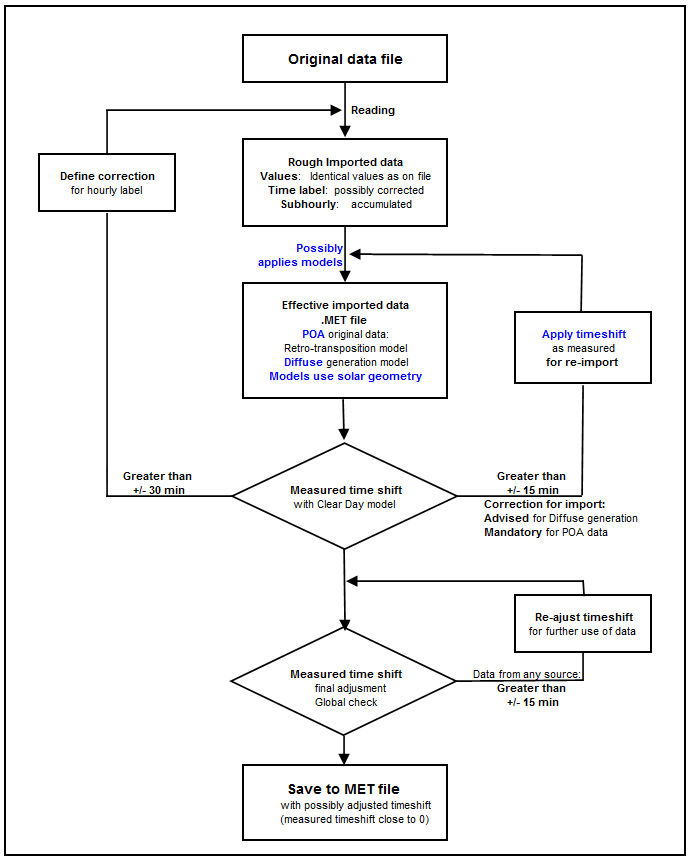
- First import the data without precautions. The program will guide you to the graphs for the assertion of the correct time shift.
- Evaluate the effective time shift of your data.
- Apply the observed time shift corrections in the format protocol, and re-import the data.
If the effective time shift is less than +/-30 minutes (*):
- With the custom import tool, you should specify the "Time shift" parameter in the importing protocol.
- With PVsyst standard files, you can add a line
#Time shiftand the value in minutes in the header - With other sources, you don't have the opportunity of changing the time shift at the import time, but you can adjust it for the future uses of the MET file. Usually the "known" files imported by "Import Weather Data" are already corrected in the importing protocol.
If the effective time shift is more than +/-30 minutes (*): you have several means for the correction:
- With the custom import tool, you should specify the "Hour shift" parameter in the importing protocol.
- With PVsyst standard files, you can add a line
#Hour shiftand the value in hours in the header - With other sources imported by "Import Weather Data", if this arises, it is usually not a file compliant with the usual definitions of the concerned source.
- With all files, you can also modify the Time Label directly in the source file, by displacing the Time label column (in EXCEL, insert or delete one cell at the beginning of the column).
If there is a time shift varying along the year:
- With the custom import tool, you should use DST correction (option "Summer Time > Apply").
- Otherwise there is no practical way, except modifying the dates directly in the source file.
If the file is defined in UTC (Universal Time):
- With the custom import tool, check the box "Universal time".
- With PVsyst standard format, you can add a line
#Time Referencewith the valueUT
NB: In PVsyst, the time defined around sunrise and sunset for solar geometry is the middle of the interval when the sun is over the horizon.
NB: When importing data (especially from POA), PVsyst will limit the GlobHor to a reasonable value according to the clear sky model.
(*): The true limit is specified by the Hidden parameter 'Maximum allowed time shift in Weather data', under the category Miscellaneous : Weather Data, Simulation
Custom import steps
The following diagram summarizes the necessary steps for importing data from a custom or unknown data file in PVsyst versions prior to 8.1.0.