Time shift
The internal treatment of time shifts was updated in PVsyst 8.1.0. This page explains the time shift implementation for sub-hourly and hourly .MET files from version 8.1.0 onwards. For the legacy approach read this page. Note that old .MET files remain compatible with the new PVsyst versions.
Input time format
When running a PVsyst simulation, the time used is the legal winter time of the site. But when importing a custom weather file, the time definition might be different. It is therefore important to define the potential sources of time shift in the Date tab of the custom import window.
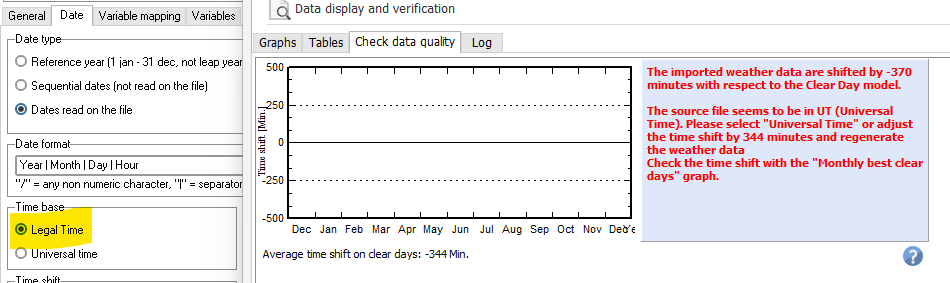
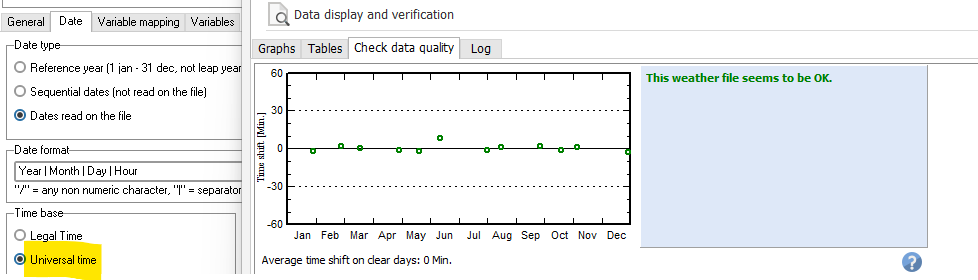
- UTC time: If your measurements were made using UTC time as reference, you should select the option
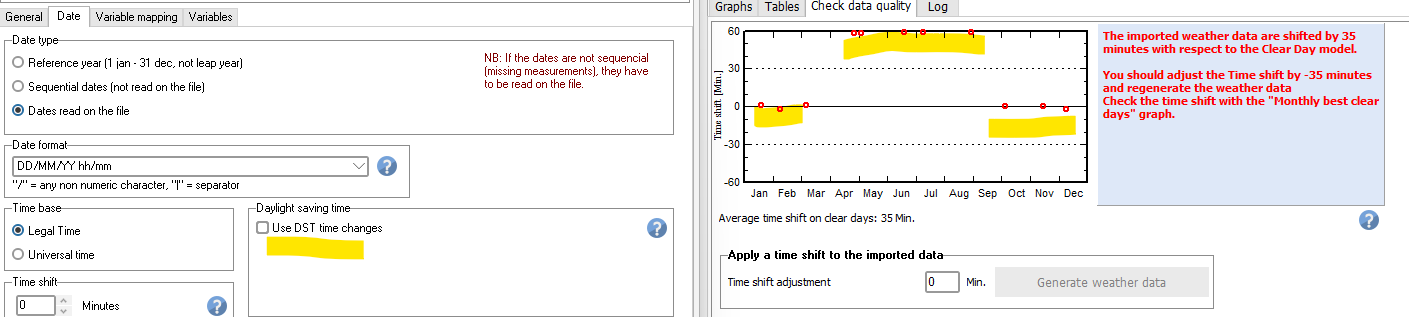
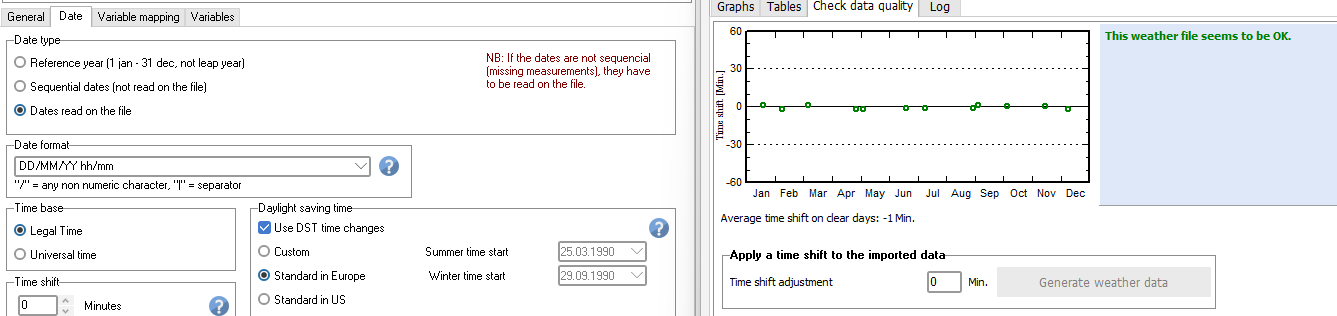
Universal Timeoption in the boxTime base. Your input timestamps will be automatically shifted to the legal time of the site. It is important to define the site correctly for this time correction to work. - Daylight Saving (DST): Your input data might contain a DST time change. To correct the summer timestamps, check the box
Use DST time changesand select the dates of the DST for your input data. - Record label time: In PVsyst, the time label correspond to the time interval beginning. For example for a 15 minute time step file, the measurement at
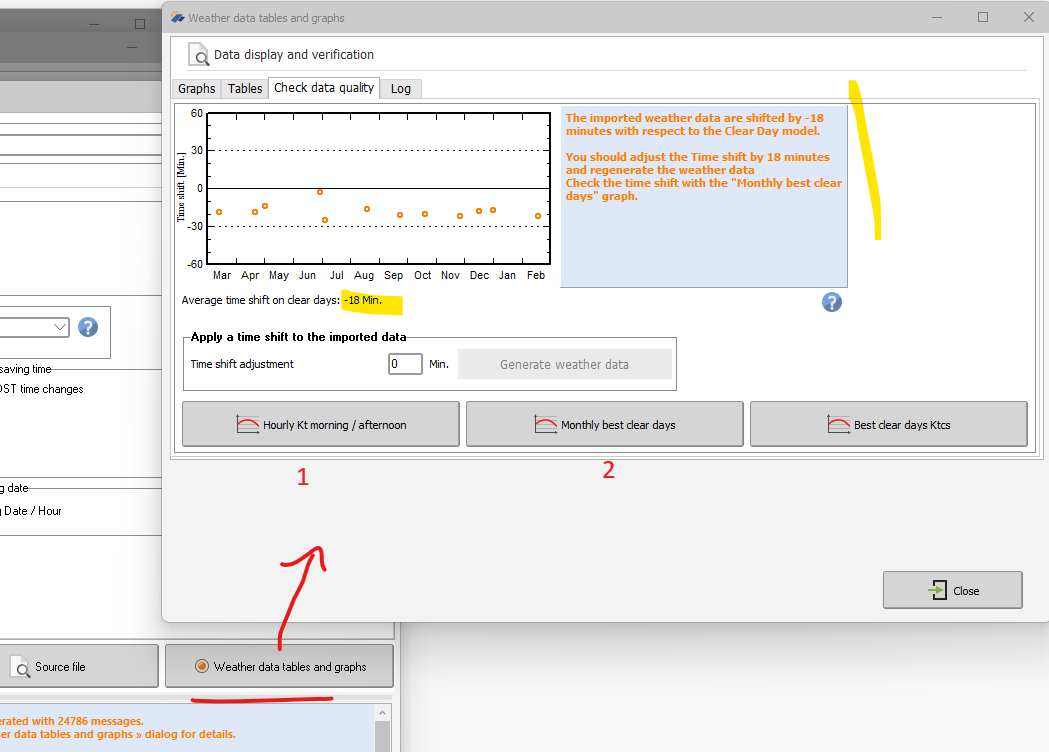
12:00refers to the measurement taken during the time interval12:00-12:15. If your data provider uses the opposite convention (if12:00-12:15is called12:15) you can select the optionRecord time label->interval endand PVsyst will automatically correct that time shift. Note that the time step of the file must be correctly defined first. - Time shift : After defining the 3 points above your irradiance measurements might still be shifted compared to the clear sky model. This will be indicated in the Weather data tables and graphs window. Use this final parameter to shift your data and align it with the clear sky model. Failing to do so will result in errors in the transposition and diffuse calculations, as well as errors on the sun position later during the simulation.
Examples
UTC
UTC data wrongly imported as legal time:
Same file, with correct Universal Time option selected:
DST
Weather data imported DST present in data but not defined in .MEF configuration:
Same file with correctly defined DST in .MEF configuration:
Time shift adjustment
If a time shift is still detected, follow these steps:
- Verify there is indeed a time shift using the
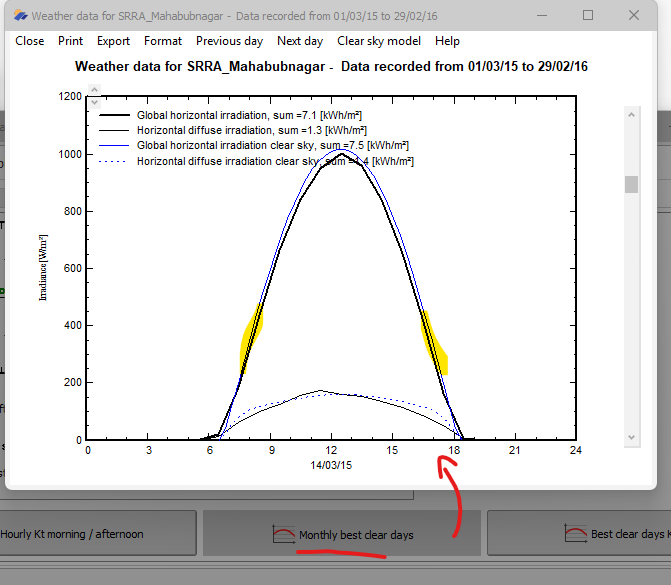
Monthly best clear days. Check the time shift is constant across the different months (otherwise see DST definition) - Define the time shift correction using the
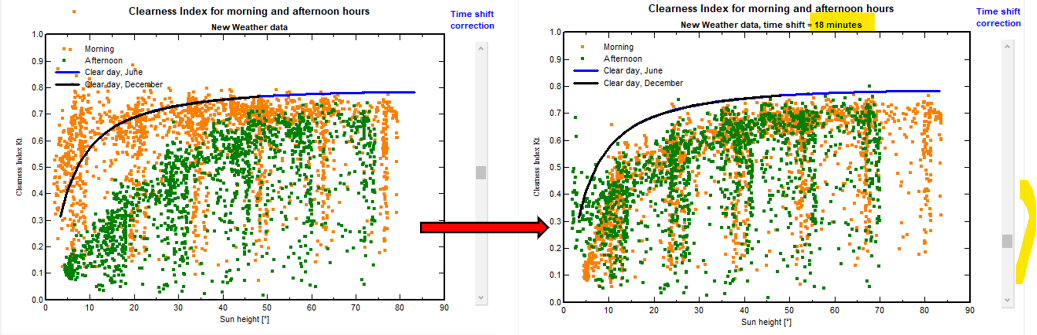
Hourly Kt morning/afternoonplot. Apply the time shift - The data will be reimported. Check the time shift again. You may need to repeat the procedure for POA imports
Time shift detected:
Hourly Kt morning afternoon. Patterns for morning and afternoon should be identical; by aligning them you can get a precise estimate of the timeshift to apply.
Verification using best clear days: GlobHor and clearsky should be aligned.
Time shift implementation
When defining one or several sources of time shift, the total combined time shift will be split into 2 contributions:
- Shift of the timestamps (equivalent to hour shift in PVsyst versions 8.0 and prior)
- Remaining time shift within the interval, used to correct the sun position during simulation.
Examples
Suppose a 10-min time step file with a total time shift of +25 min. This corresponds to a shift of 2 timestamps of 10 minutes, plus a remaining time shift of 5 minutes:
The data saved in the .MET file will be shifted as follows compared to the input .csv:
- The input measurement labelled as
12:00in the csv will be shifted to12:20in the .MET - The remainder +5 min shift will be saved in the .MET file and used during simulation for sun position corrections Note that the remaining time shift is always minimised. Suppose a 10-min time step file with a total time shift of +19 minutes:
- The input measurement labelled as
12:00in the csv will be shifted to12:20in the .MET - A remainder -1 min shift will be saved in the .MET file and used during simulation for sun position corrections
Effect on hourly aggregation
When a time shift is applied to subhourly data, note that it will affect the aggregated hourly values as different measurements will be aggregated for a given hour. Still considering a 10-min input file with a 20 min time shift (2 timestamps shifted), the hourly aggregations are affected as follows:
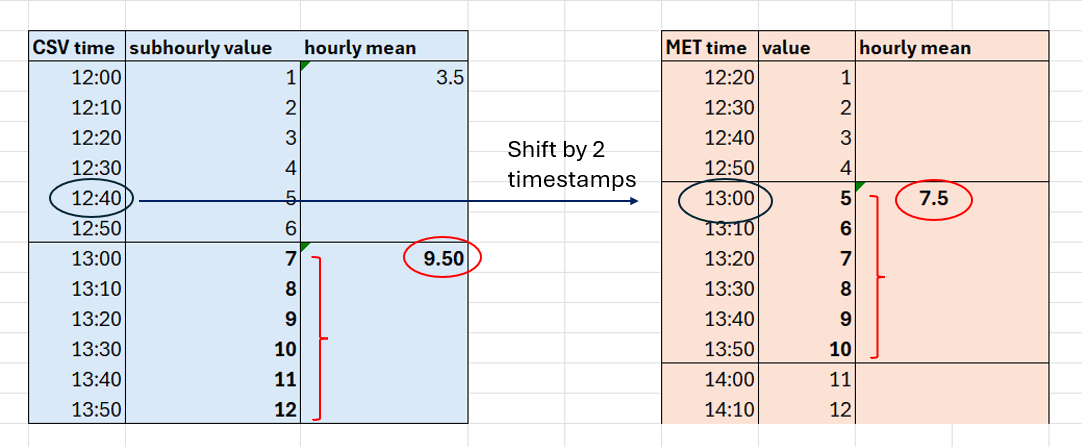
Updates
8.1.0
- With the switch to sub-hourly data, the separate
hour shiftfield was removed. Files are backward compatible, an older .MEF file with a +1 hour shift will simply be read as having a +60 minute time shift. - Legacy time shift definition can be found here.
- Since version 8.1.0, there is no limit to the value of the
Time shiftthat can be used.