PVsystBasic Installation
System Requirements
Technical Requirements
- PVsystBasic runs only on Windows (see below for other operating systems).
- PVsystBasic cannot be installed on Windows Server.
- It must be installed on the workstation where it will be used.
- The program works correctly in full license mode only if the computer’s date and time are correct and have never been changed. PVsystBasic accepts no liability for program malfunctions caused by changes to the computer’s clock.
Minimum System Requirements
- Operating systems: Windows 10 and Windows 11 (32-bit or 64-bit)
- Windows editions: Home or Professional
- At least 1 GB of RAM
- At least 2 GB of free hard disk space
- Minimum screen resolution of 1280x720 pixels
- Graphics card compatible with OpenGL 2.0 or higher
Installing PVsystBasic
The PVsystBasic installation file is available at this address https://www.pvsyst.com/download/latest-basic
- Download the installation file
- Double-click it; a security warning may appear: the publisher must be PVsyst SA (if not, contact us). Accept it.
- If the computer is already running a version of PVsystBasic, a dialog box asking to upgrade or perform a parallel installation will appear:
- Upgrade (recommended): older versions of PVsystBasic 1 will be removed (user data is preserved) and the new version will be installed.
- Parallel installation: older versions of PVsystBasic 1 are not uninstalled, and the new version is installed in a separate folder. If you are using the same projects, please note that backward compatibility with existing user data is not guaranteed. This option is still useful, however, if you need to manage older versions of PVsystBasic.
- Accept the terms of use.
- Choose an installation folder; the default folder,
Program Files, is generally a good choice. - Accept or decline the collection of anonymous data.
- When you are ready, click Install and agree to elevate your privileges to Administrator when prompted.
- Once the installation is complete, launch PVsystBasic using the desktop icon or from the Start menu (PVsystBasic 1.0).
Program Files
The installation folder contains the program itself, PVsystBasic.exe (which is accessible via a shortcut in the Windows Start menu), and a set of built-in databases for PV components:
- PV modules
- Pumps
- etc.
These databases cannot be read or modified outside of PVsystBasic; they will be updated with software updates.
User Data
When PVsystBasic is installed, a user data structure is created.
The default location is:
%USERPROFILE%\PVsystBasic1.0_Data
Updates
An update may contain:
- New features and improvements
- Software fixes
- Updated component databases
Automatic Update Check at Startup
When the application starts, PVsystBasic can automatically check for available updates.
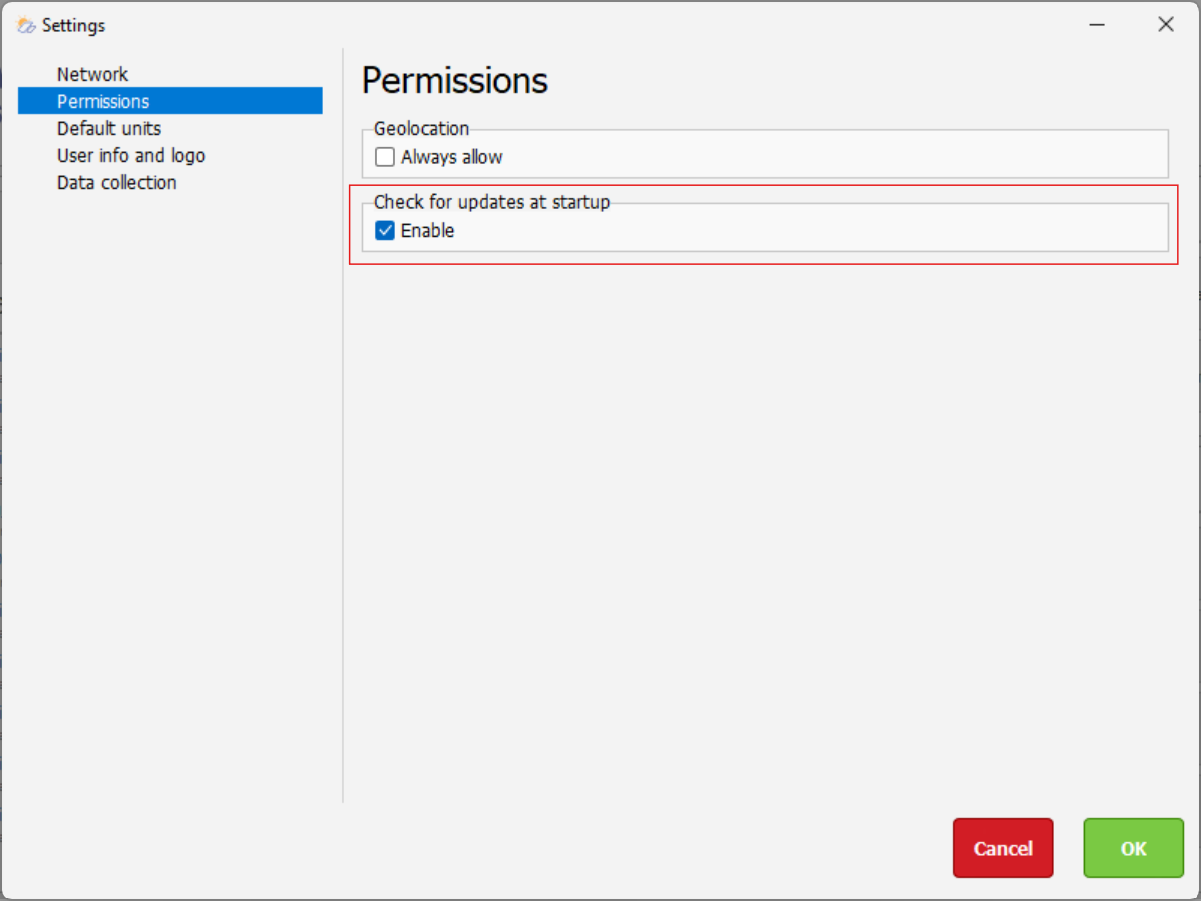
Enable/Disable Automatic Update Check
- Click the
Options -> Settingsmenu - Click the
Permissionssection - Toggle the Check for updates on startup checkbox.
Manual check for updates
Updates can be checked manually from the Help -> Check for Updates menu.
Warning
Checking for updates requires an active Internet connection; make sure the computer can access *.pvsyst.com via SSL.
Uninstall
Uninstalling PVsystBasic requires nothing more than using the Windows uninstallation tool:
- Select
Start -> Control Panel -> Uninstall a program. - Right-click on PVsystBasic in the list, then click Uninstall
- Accept and follow the instructions.